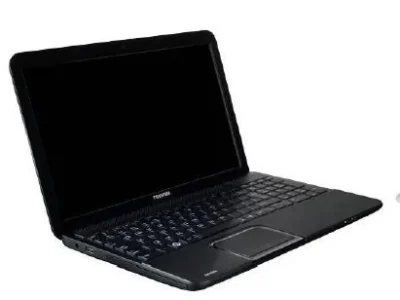
The direct answer: Inspecting a used laptop before buying covers 7 basic steps: checking the outer body, testing the screen, checking the keyboard and touchpad, testing the ports and connections, checking the battery condition, testing performance under load, and making sure the advertised specifications match the actual specifications using the system tools.
The inspection steps in detail
1. Checking the outer body
Check the body for breaks, cracks or bends, especially at the hinges that connect the screen to the laptop. Open and close the screen several times and make sure the movement is smooth with no rubbing sound.
2. Testing the screen
Open a completely white image and then a completely black image to detect any dead pixels or spots, or backlight bleed from the edges. Also check from different angles to make sure the colours stay stable.
3. The keyboard and touchpad
Press every key to make sure it responds, and open a notes app and type a full sentence to make sure all the letters work correctly. Test the touchpad with dragging, double-tapping and two-finger scrolling.
4. Ports and connections
Try every USB port by plugging in a USB flash drive, test the charging port, and make sure Wi-Fi and Bluetooth work by connecting to a real network.
5. Battery condition
In Windows you can run the command powercfg /batteryreport from the Command Prompt to get a report showing the battery’s original design capacity against its current capacity, which is the most accurate indicator of its actual condition.
6. Testing performance under load
Open several programs together and watch the laptop’s temperature and fan speed, and make sure the laptop does not restart by itself or freeze under medium load.
7. Matching the actual specifications
Open “System Information” in Windows and make sure the processor type, RAM size and storage type (SSD or HDD) match what is stated in the product description. Also see our guide on choosing the right RAM size if you want to understand whether the offered capacity is enough for your use.
Why is inspection more important when buying directly on the local market?
When buying from a store that specialises in imported laptops, the basic inspection has already been done as part of the grading process, but checking for yourself is always useful. When buying directly from an individual on the local market, however, your own inspection becomes the only line of defence. See our guide to the difference between imported and local used laptops to understand the basic differences between the two sources.
How do I know the real battery condition of a used laptop?
In Windows, run the command powercfg /batteryreport from the Command Prompt, and it will give you an HTML report showing the original design capacity against the actual current capacity, which is the most accurate way to know how much the battery has degraded.
What are dead pixels and how do I detect them?
Dead pixels are small dots on the screen that do not show the correct colour. To detect them, open a single-colour image (white, then black, then red, green and blue) in full screen and look for any odd dots.
Can the specifications written in a used-laptop sale ad be trusted?
Do not rely on the description alone. Actually open ‘System Information’ in Windows to check the real processor type, RAM size and storage type, because some ads may contain errors or inaccurate information, intentionally or unintentionally.
How long does it take to inspect a used laptop properly?
A full inspection covering all the points (body, screen, keyboard, ports, battery, performance, specifications) usually takes 15 to 30 minutes if done in an organised way, and it is time worth investing to avoid surprises later.
Related articles
- Warranty guide when buying a used laptop: what you need to know
- Imported laptop vs new laptop: which should you choose in Egypt?
- How to inspect and test a used laptop before buying: keyboard, screen and ports
Browse now the range of budget laptops available at Laptop Masr, and start your buying journey with confidence.